

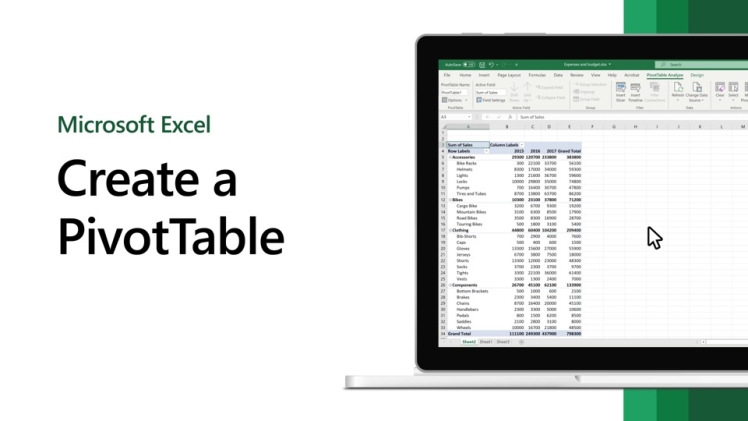
Excel is a powerful tool that can handle a wide range of data analysis tasks. One of its most valuable features for data manipulation and analysis is the Pivot Table. Pivot Tables allow you to quickly summarize and analyze large datasets, gaining insights and making informed decisions. In this comprehensive guide, we’ll walk you through the process of creating and using Pivot Tables in Excel.
What Is a Pivot Table?
A Pivot Table is a data processing tool in Excel that allows you to transform and summarize raw data into a more meaningful format. With Pivot Tables, you can:
Summarize Data: You can summarize large datasets by aggregating values, such as summing sales, averaging scores, or counting occurrences of specific items.
Reorganize Data: Pivot Tables enable you to pivot or rotate data, changing the arrangement of rows and columns to gain a new perspective on your data.
Filter Data: You can filter data to focus on specific subsets, making it easier to identify patterns and trends.
Create Interactive Reports: Pivot Tables are dynamic, so you can quickly update your analysis as new data becomes available or criteria change.
Now, let’s dive into the steps to create and use Pivot Tables effectively.
Step 1: Organize Your Data
Before you can create a Pivot Table, you need to have your data organized in a tabular format. Each column should have a clear heading, and there should be no blank rows or columns in your dataset. It’s essential to have consistent and clean data to ensure accurate results.
Step 2: Select Your Data
Click anywhere within your dataset to activate it.
Navigate to the “Insert” tab in the Excel ribbon.
Click on the “PivotTable” option.
Step 3: Create Your Pivot Table
After selecting the “PivotTable” option, you’ll be presented with the “Create PivotTable” dialog box. Here’s how to proceed:
Ensure that Excel has correctly identified the range of your data. If not, you can manually enter the data range in the “Table/Range” field.
Choose where you want to place your Pivot Table. You can either create a new worksheet or use an existing one.
Click “OK” to create your Pivot Table.
Step 4: Design Your Pivot Table
Now that you have your Pivot Table set up, it’s time to design it according to your analysis needs. Your Pivot Table Fields pane should appear on the right side of the Excel window. Here’s what you can do:
Add Fields: Drag and drop fields from your dataset into the “Rows,” “Columns,” “Values,” or “Filters” area of the Fields pane to specify how you want to summarize and arrange your data.
Summarize Values: By default, Excel will use the SUM function for numeric fields. You can change the summary function by clicking on the drop-down menu next to the field in the “Values” area.
Format Values: You can format the values in your Pivot Table by right-clicking on a cell and choosing “Value Field Settings.” This allows you to apply number formats or customize how values are displayed.
Sort and Filter Data: You can sort and filter your data within the Pivot Table itself. Just click on the drop-down arrow next to a field in the “Rows” or “Columns” area to access sorting and filtering options.
Refresh Data: If your data changes, click the “Refresh” button in the Pivot Table toolbar to update your analysis.
Step 5: Customize Your Pivot Table
Pivot Tables offer various customization options to enhance the appearance and usability of your analysis:
Apply Styles: Excel provides predefined Pivot Table styles that you can apply to make your table visually appealing. Go to the “Design” tab and choose a style from the “PivotTable Styles” gallery.
Group Data: You can group data within your Pivot Table by dates, numbers, or text values to create more meaningful categories. Right-click on a cell, choose “Group,” and set your grouping criteria.
Add Slicers: Slicers are interactive visual filters that allow you to control your Pivot Table with buttons. You can insert slicers from the “Insert” tab and link them to your Pivot Table fields.
Calculated Fields and Items: If you need to perform custom calculations, you can create calculated fields or items within your Pivot Table. This is useful for calculating margins, growth rates, or other metrics not directly present in your dataset.
Step 6: Refresh Your Data
Pivot Tables are dynamic, which means they automatically update when your source data changes. However, if you’ve made significant changes to your dataset, you may need to manually refresh your Pivot Table. To do this, click anywhere within the Pivot Table and press the “Refresh” button in the Pivot Table Analyze tab.
Step 7: Analyze Your Data
With your Pivot Table in place, you can now perform various analyses and gain valuable insights from your data. Here are some common analyses you can conduct:
Summarize Data: Use Pivot Tables to calculate sums, averages, counts, and more for different categories within your dataset.
Identify Trends: Pivot Tables make it easy to spot trends and patterns in your data by rearranging it into meaningful categories and subcategories.
Compare Data: You can use Pivot Tables to compare data across different time periods, regions, or other relevant dimensions.
Filter Data: Apply filters within the Pivot Table to focus on specific subsets of your data, allowing you to answer specific questions.
Create Charts: Pivot Tables can be used as the source data for Excel charts, making it easy to visualize your findings.
Step 8: Present Your Findings
Once you’ve completed your analysis using Pivot Tables, it’s time to present your findings. You can easily copy and paste your Pivot Table into reports and presentations or use it as the basis for creating charts and graphs. Excel’s flexibility allows you to tailor your presentation to your audience’s needs.
Conclusion
Mastering Pivot Tables in Excel is a valuable skill that empowers you to efficiently analyze and present complex data. By following the steps outlined in this guide, you can create Pivot Tables, customize them to your needs, and use them to uncover insights and make data-driven decisions. Excel’s Pivot Tables are an indispensable tool for professionals and analysts across various industries, and with practice, you can become a proficient user, enhancing your data analysis capabilities.
